
This post is also available in:

In the following article, we’ll show you how to easily connect your Upgates account to Samba using our plugin.
What the plugin does
The Samba.ai plugin automatically configures and manages key features for your integration with the Samba.ai platform. Here is an overview of the supported areas:
-
Data feeds: Automatic synchronization of customer, product, and order feeds from Upgates to Samba.ai.
-
Customer tracking: Full integration of tracking scripts that allow you to monitor customer behavior on your website. For example, abandoned carts, expressions of purchase intent, repeat orders of specific products, etc.
Important notice: To take full advantage of all Samba.ai features (including unlimited feeds and advanced options), we recommend upgrading from the limited Free plan to one of our paid plans. Details about pricing plans and upgrade options can be found here.
Installing the plugin
In the Upgates Marketplace, find our Samba.ai plugin for Upgates and click
Activate.
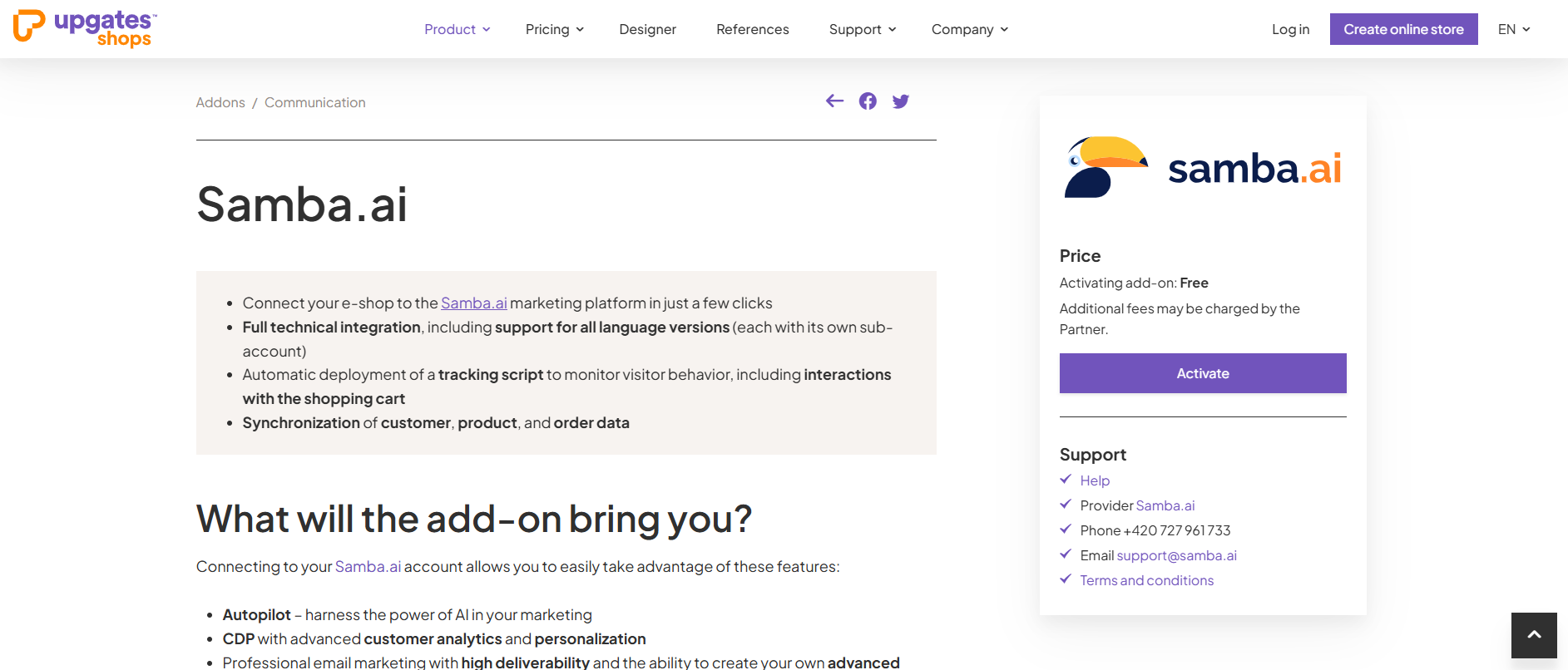
Then, install the plugin in the Upgates admin panel.
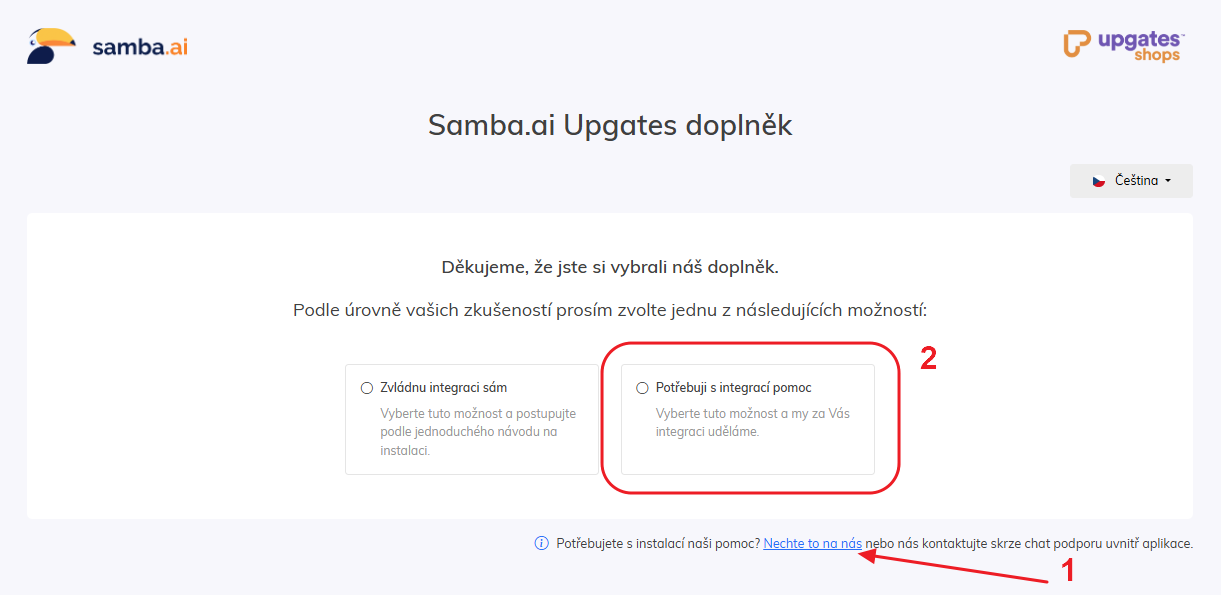
As soon as the extension is installed, you can click through to its settings. This will take you to the extension’s main page, where you can proceed with the initial setup.
The entire process of connecting the plugin consists of three steps.
- Registering an account in Samba
- Linking accounts
- Data exports
1. Create an account in Samba
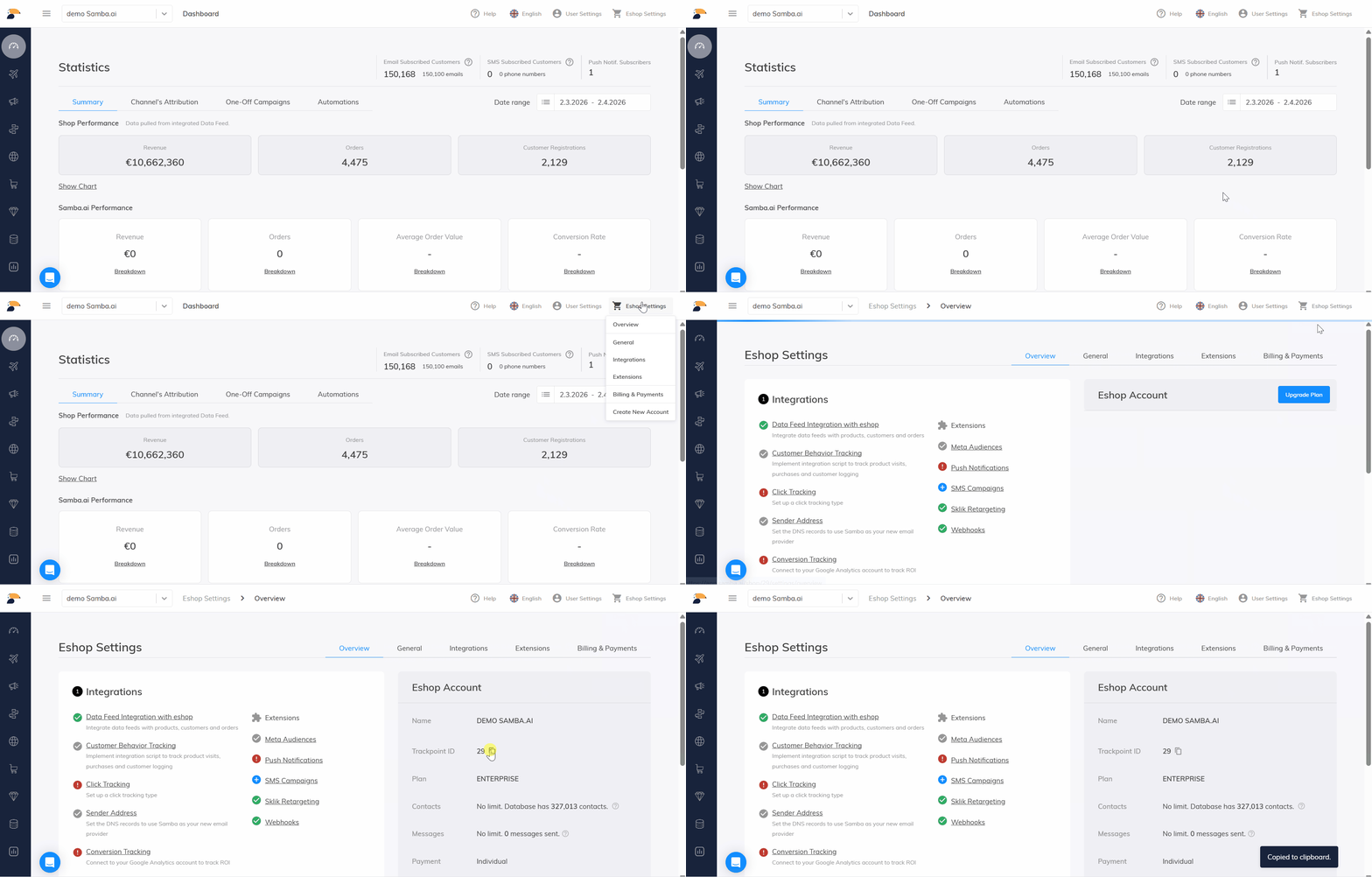
In the plugin settings, you’ll need to enter your e-shop’s Trackpoint ID, which you can find in your Samba account. If you don’t have an account yet, you’ll need to create one.
Here are instructions on how to sign up for Samba.ai.
After completing registration, you will find your Trackpoint ID in Eshop Settings > Overview
Support for e-shop language versions
The Samba.ai plugin fully supports all language versions of your e-shop on the Upgates platform. Create a separate e-shop account in the Samba.ai system for each language version (e.g., CZ, EN, SK).
-
Management in the plugin administration: Each account is managed independently in the plugin dashboard. This means a unique and correct Trackpoint ID for each language version, separate integration settings, order mapping, etc.
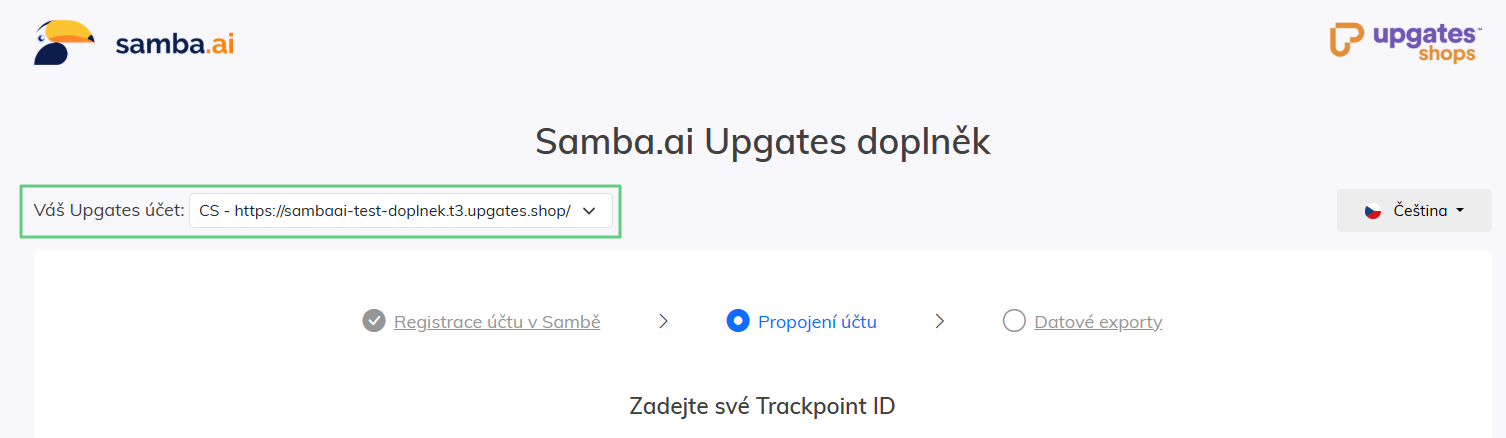
- Selecting a language version: You can select the desired language version using the dropdown menu in the top-left corner of the plugin.
-
Feed integration: Feeds are integrated separately for each language version.
Example: If you have an e-shop with CZ/SK/PL language versions, create three separate accounts in Samba – your-eshop-cz, your-eshop-sk, and your-eshop-pl. For the CZ version, upload the feed from Upgates CZ; for the SK version, upload the SK feed, and so on.
2. Connecting Your Account
Paste the Trackpoint ID you copied into the appropriate field in the extension settings and click Pokračovat to save.
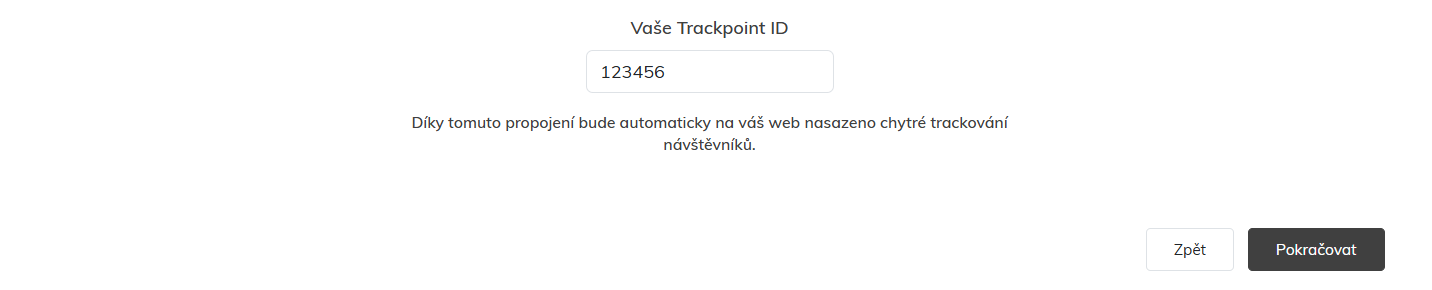
Thanks to the Samba.ai plugin, you don’t have to configure customer tracking yourself. Everything is automatically implemented on your website through the plugin.
What tracking covers
-
cartInteraction: Tracking interactions with the shopping cart. -
customerLoggedIn: Detection of customer login. -
productId: Identification of specific products. -
order: Complete order tracking, including value and status.
Result: Once activated, you’ll immediately have functional tracking for all these key events that Samba.ai uses.
Validating Tracking
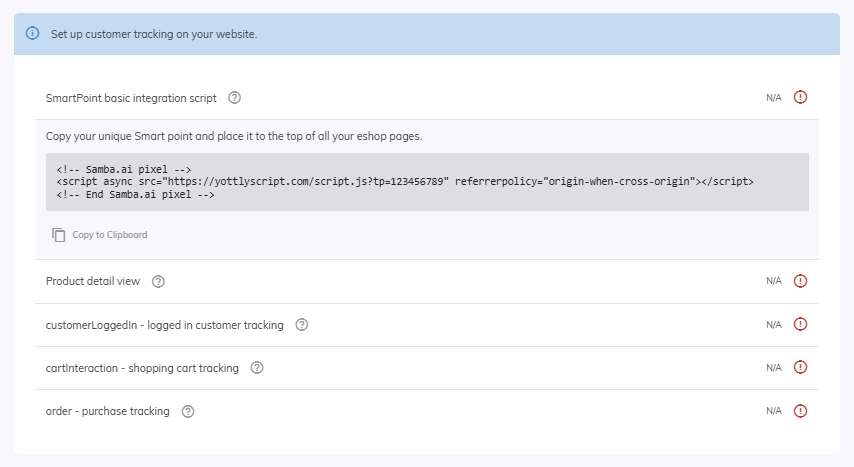
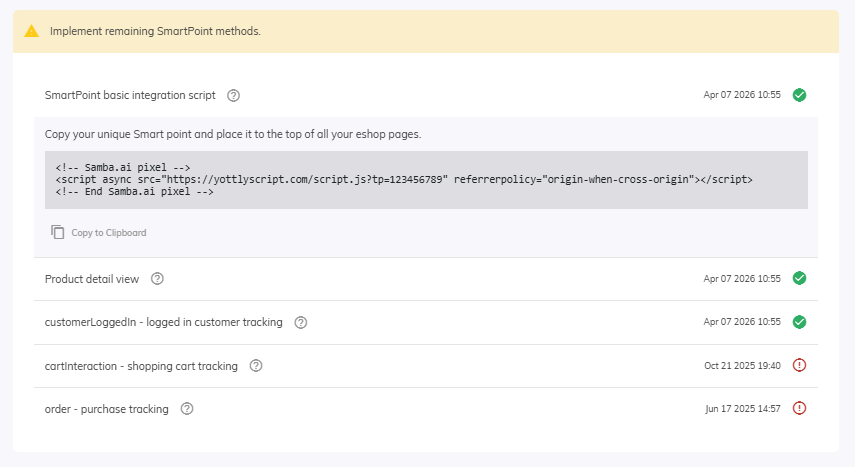
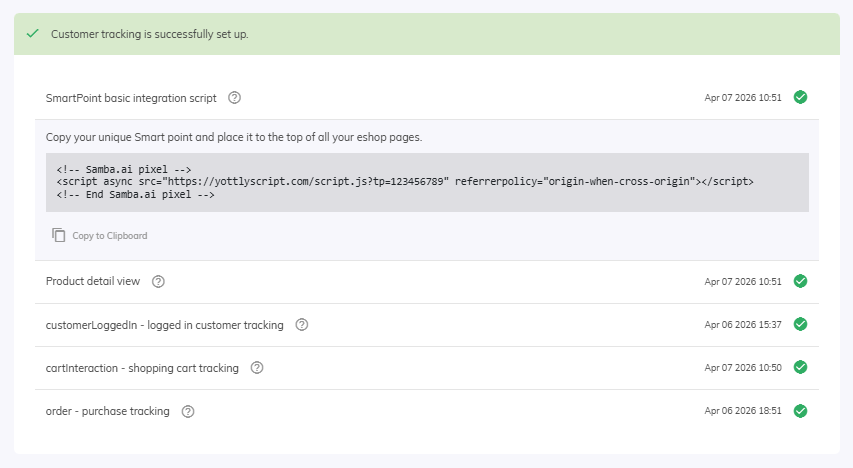
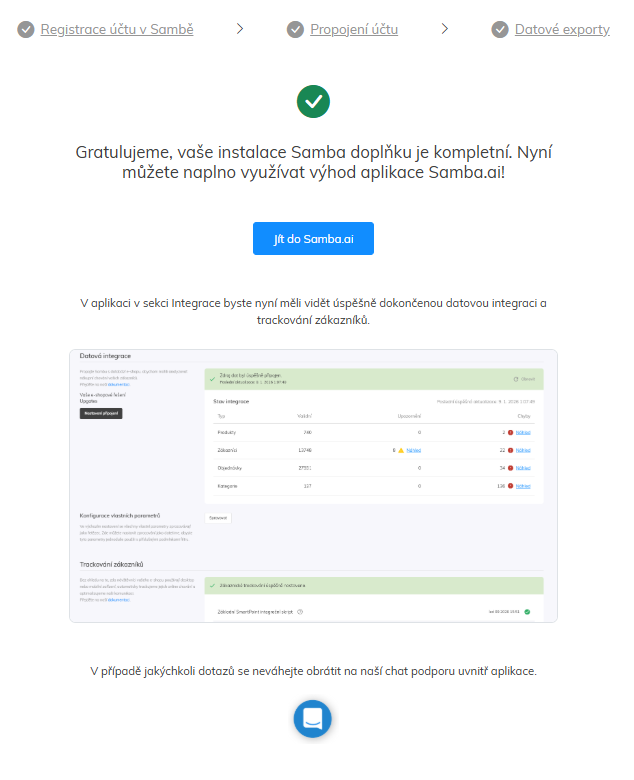
In your Samba.ai account dashboard, you can check the success of this implementation in the E-shop Settings > Integrations section.
3. Data exports
The third step of the installation consists of three parts:
- Configuring data exports
- Initial data import
- Recurring data import
3.1 Configuring data exports
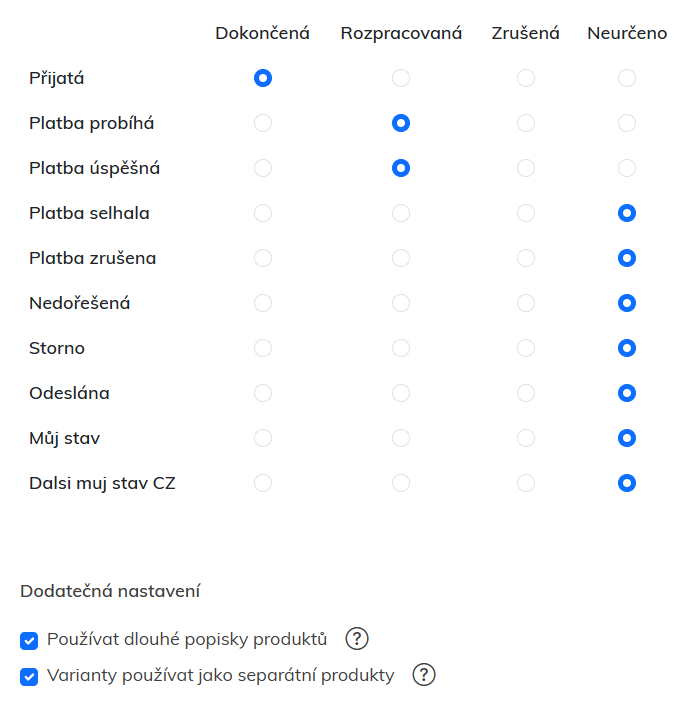
Here you can configure order mapping. For each order status listed in the Upgates administration, you can select a corresponding status in Samba. Samba processes only orders marked as Dokončená. Therefore, set a different status (Rozpracovaná, Zrušená and Neurčeno) for orders you do not want Samba to take into account. For example, an order that you mark as Received/Rozpracovaná in the e-shop administration can be mapped as Dokončená in Samba = Samba will process it.
There is also the option to configure so-called Dodatečná nastavení. These include the choice between using long and short descriptions and treating product variants as separate products.
 3.2 Initial Data Import
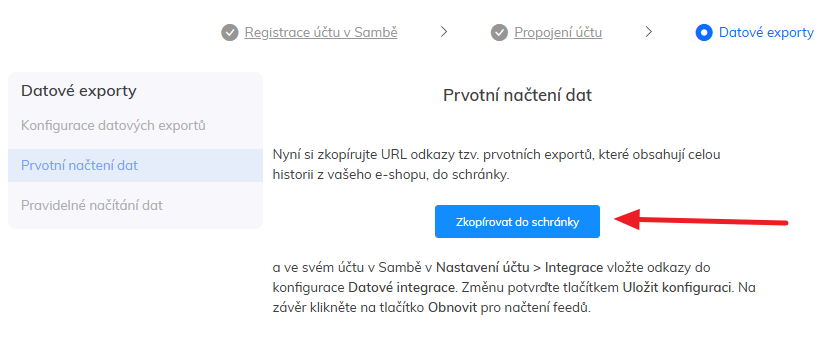
Here, the extension will provide you with URL links for the so-called initial exports. These exports contain data covering the entire history of your e-shop. You can easily copy all the links at once using the blue Zkopírovat do schránky button in the extension.
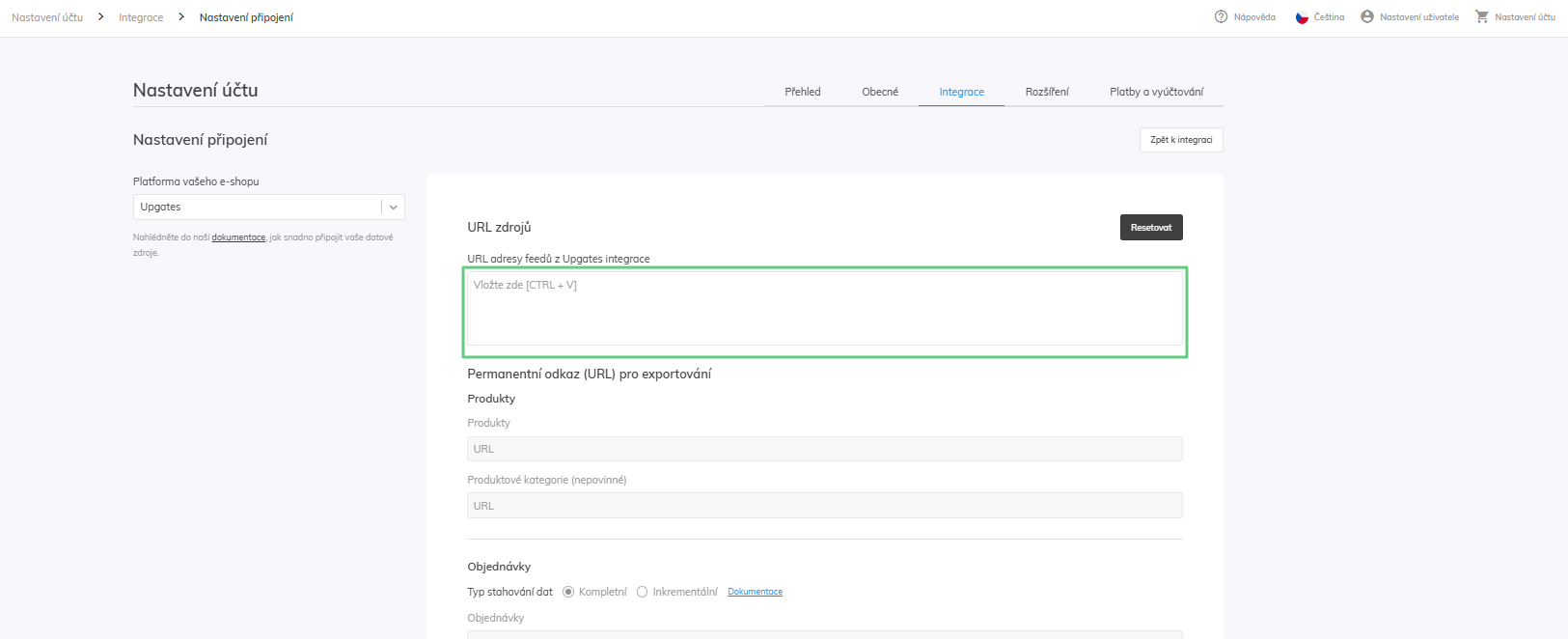
Next, go to your Samba.ai account, navigate to Eshop Settings > Integrations > Connection Settings, and paste the copied URL links there. Samba will automatically assign the individual feeds to the appropriate locations.
3.3 Regular Data Load
After successfully loading the initial data into Samba, please switch to so-called incremental exports. These exports contain only changes from the databases since the last data update and run regularly once a day. This ensures constant data synchronization between your e-shop and the Samba.ai system. At the same time, this reduces the load on the infrastructure and makes the data update itself faster, as it does not have to work with the entire database, but only with the increment, which is required by the Upgates system itself.
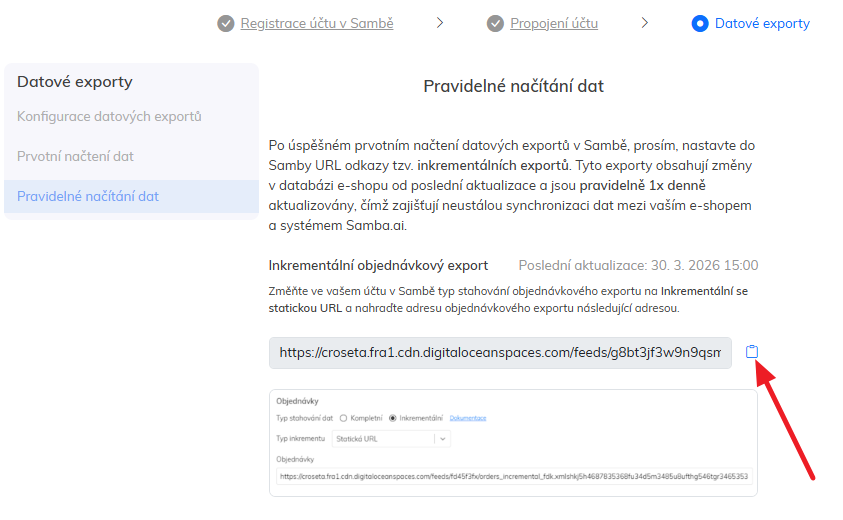
In this section, you’ll find the generated URLs for individual incremental feeds—order and customer—each of which is configured separately. Let’s start with the order feed:
- Simply copy the URL of the incremental feed to your clipboard with a single click.
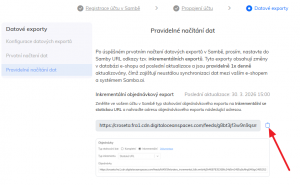
- Next, go to the Samba section and navigate to Eshop Settings > Integrations > Connection Settings.
- Here, select “Incremental” as the data download type for the order feed. Leave the increment type set to “Static URL.”
- Replace the original link (from the initial data load) with the incremental one.
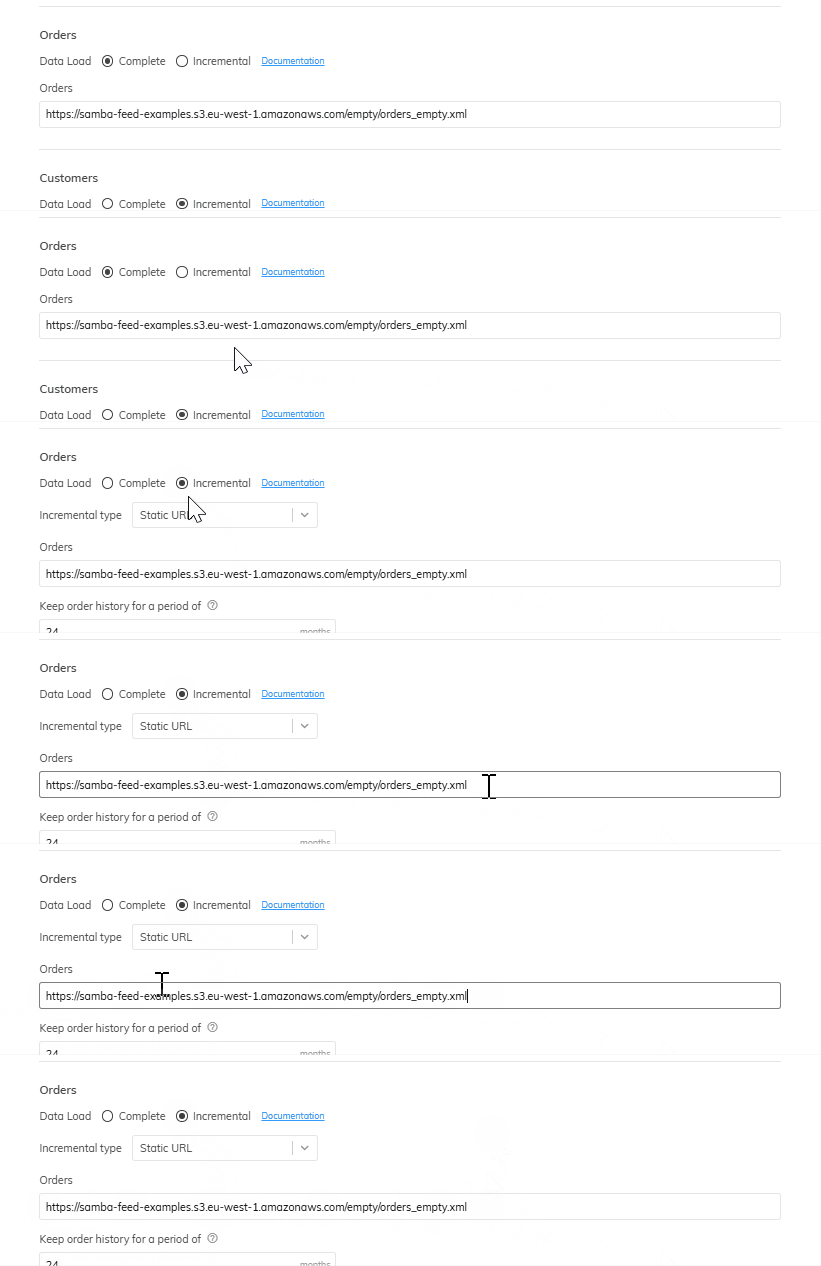
Now follow the same procedure for the incremental customer feed.
Finally, click the Save Configuration button in Samba.
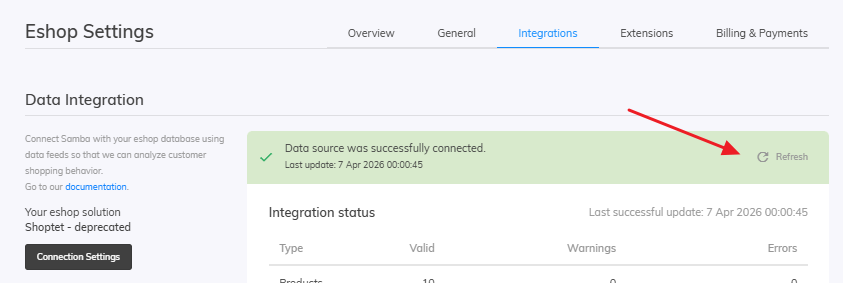
To load feeds immediately, you can now try the manual Refresh option in Samba, which will automatically run once a day from now on.
Click on Dokončit button in the plugin interface to confirm that your integration is complete. Congratulations!
Integration next steps
Samba.ai offers a wide range of features. Below is a list of features you can enable in your Samba.ai account:
Uninstalling the plugin
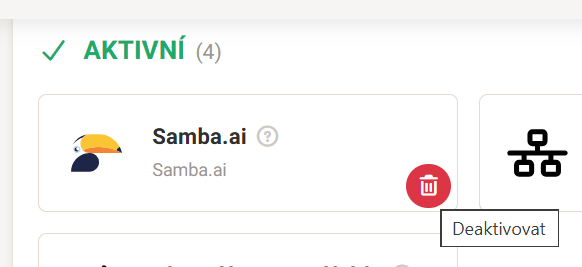
If you want to uninstall the Samba.ai plugin, simply go to the Plugins > Plugin List section in your e-shop’s admin panel, find Samba.ai, and click the icon in the lower-right corner to uninstall it.
This post is also available in: