
This post is also available in:


In this short article, we will take a look at how to create the necessary URLs of your XML feeds in the Upgates eshop administration for successful data integration with Samba.ai and we will show you how to set up customer tracking on your website by connecting Samba and the Upgates platform. General information on customer tracking can be found in this article.
Generating data feeds
In order to create URLs for your XML feeds, you need to generate an API key and access credentials to your e-shop data in the Upgates administration.
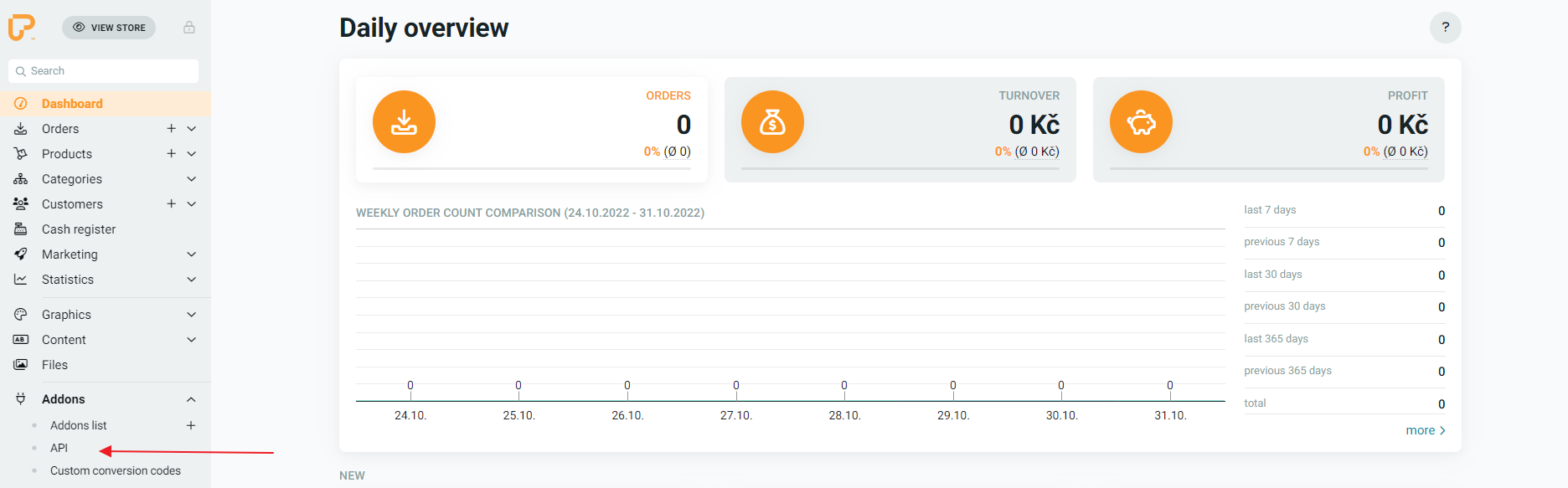
In your Upgates administration, open the Addons section in the left sidebar and navigate to the API section.
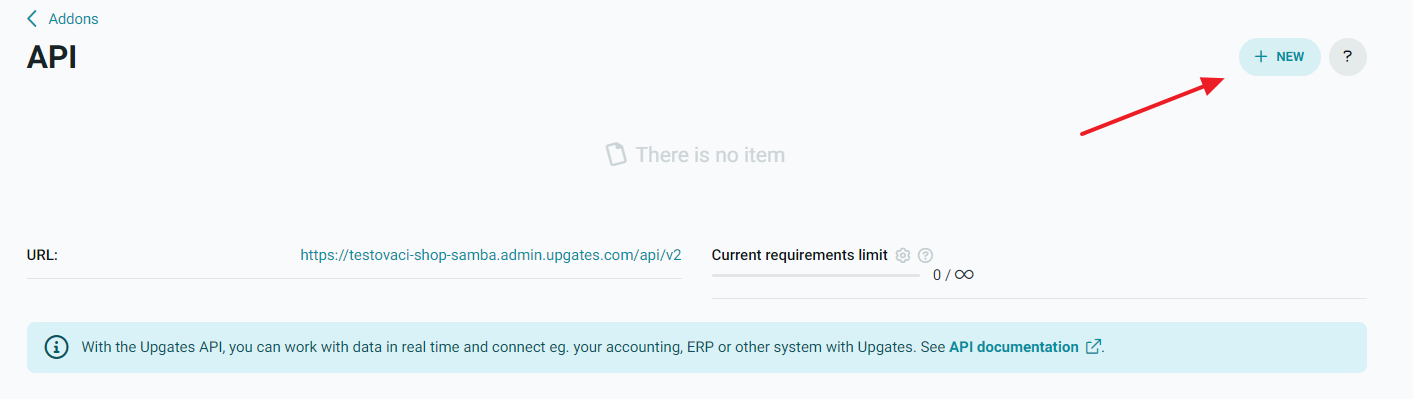
In the API section, create a “New Connection”.
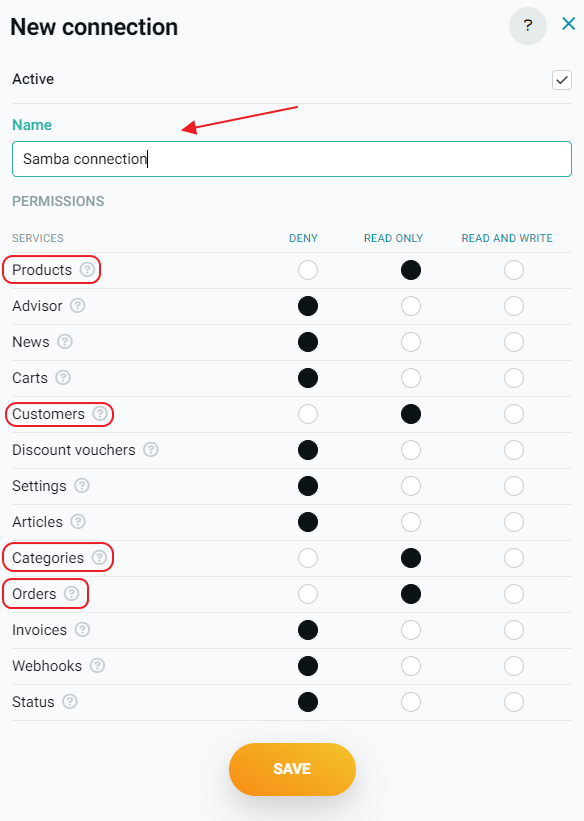
For your new link, enter a custom name and then set the permissions (Read Only) for these services:
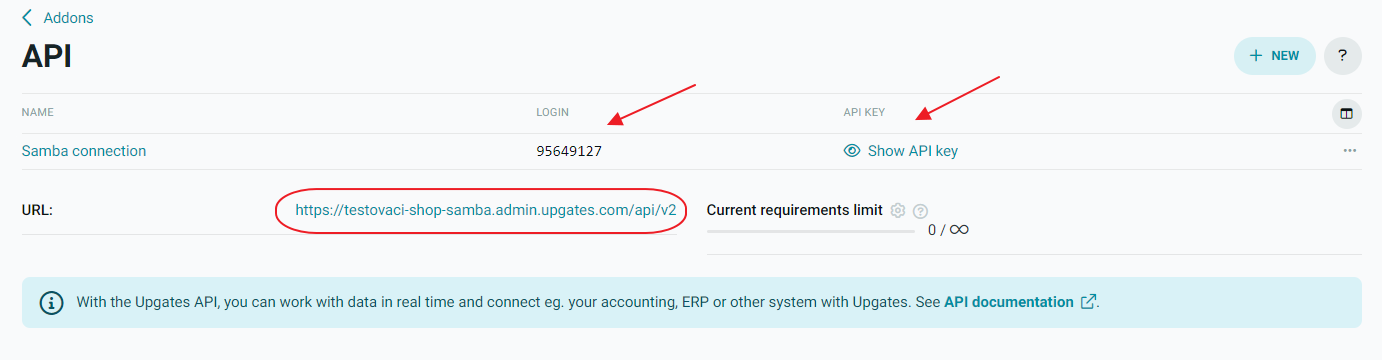
After you save the new link, Upgates will generate a URL, Login and a unique API key for your export.
Now go to this website → https://samba.croseta.com/homepage/setup-upgates, where you will use your newly created API connection to generate URLs of your feeds for Samba.
When you open the page, you will see a table where you need to fill in the Upgates data.
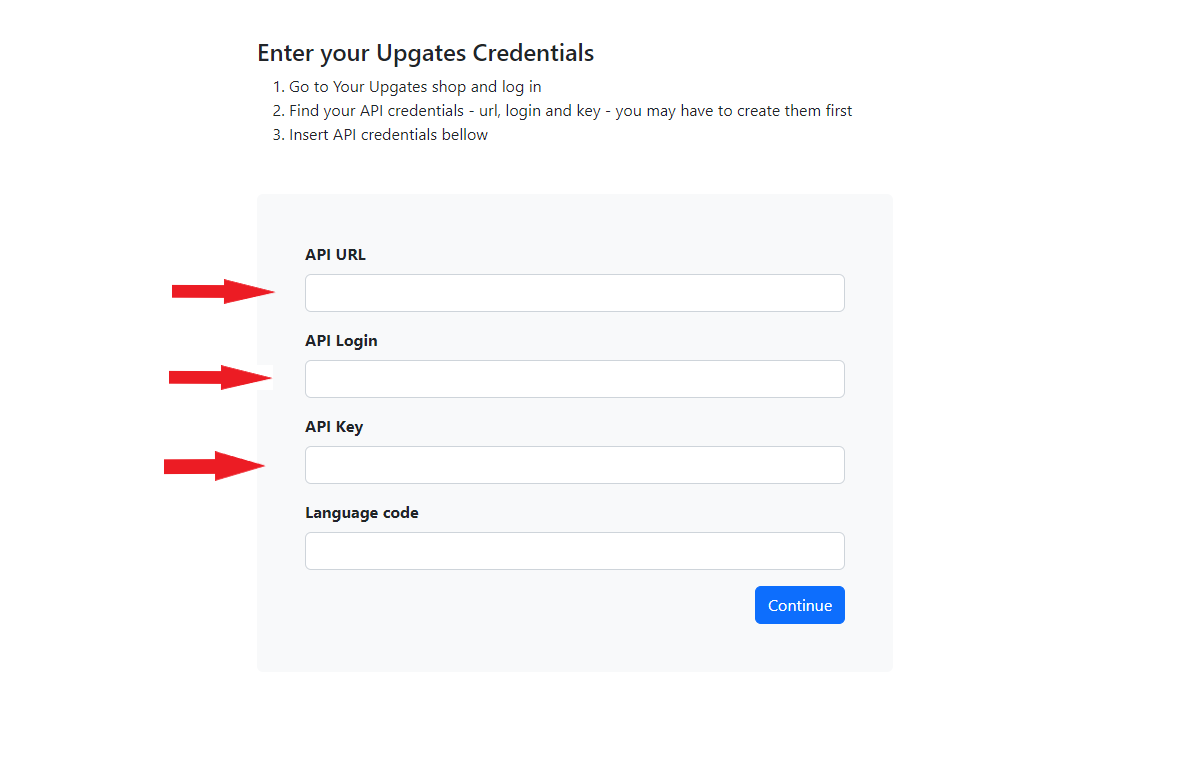
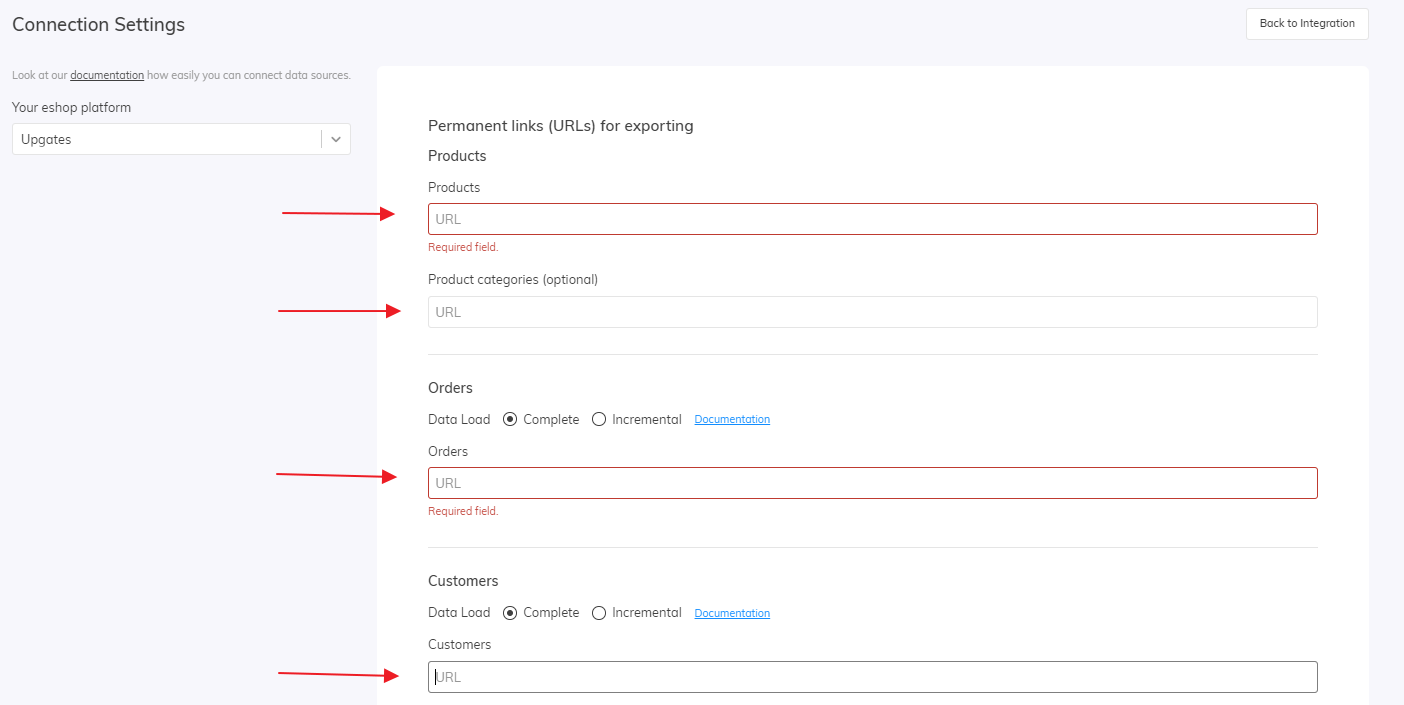
After filling in the table, press the “Continue” button and four URLs of your feeds will be generated. You can simply copy each feed using the button.

Inserting feeds into Samba
In the following step, go to your Samba.ai account.
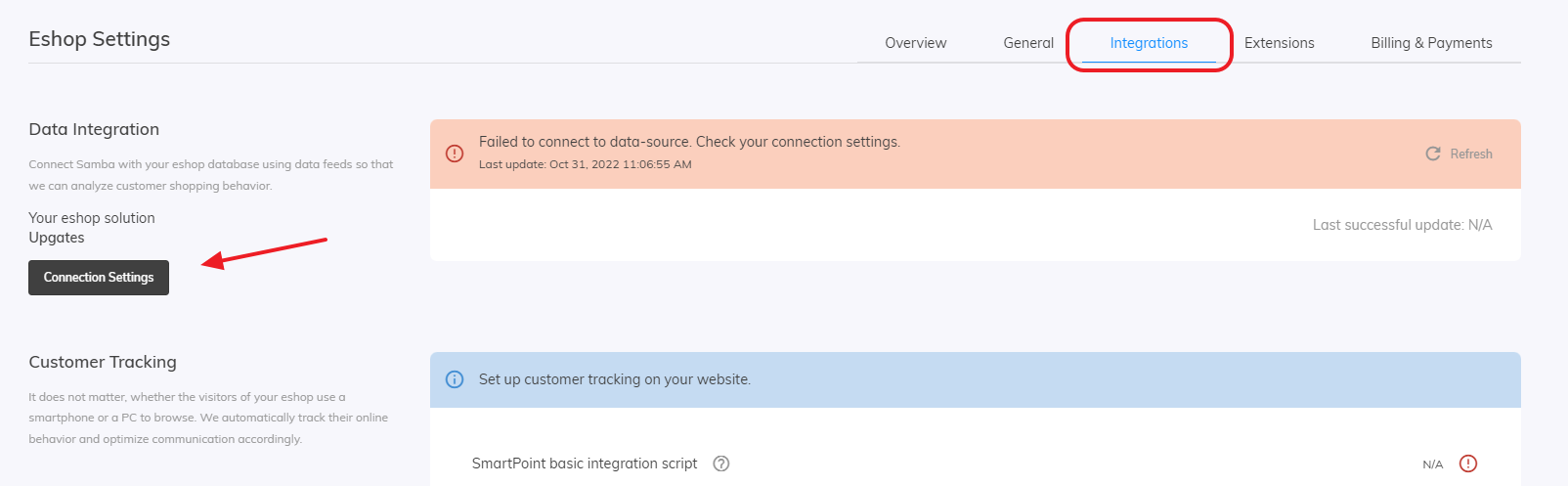
In the top right corner, open Eshop Settings and navigate to the Integrations section.
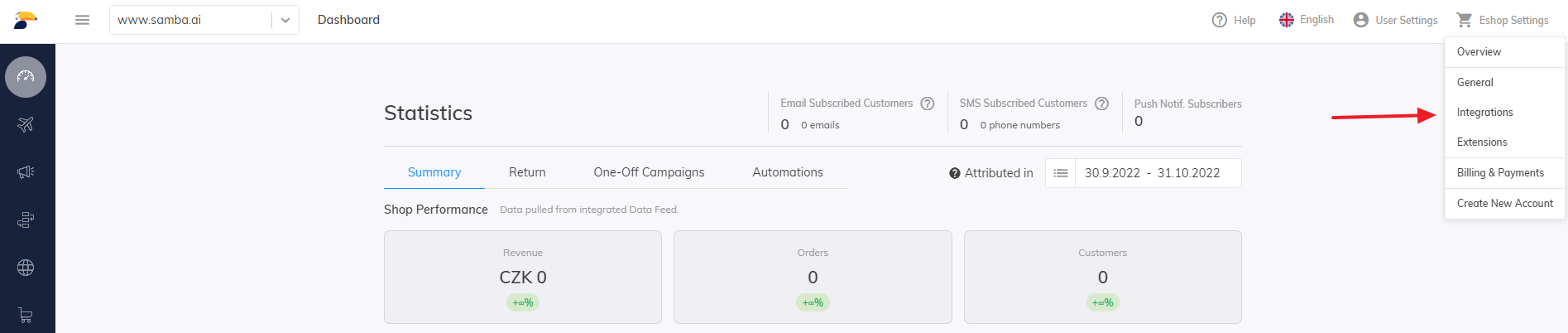
In the Integrations section, under Data Integration, open Connection Settings.
Here, paste the URLs you generated on the corresponding rows and then save the configuration.
Customer Tracking
Tracking code
In order for Samba to be able to track your customers’ purchasing behaviour and then personalize your communication based on this data, you need to have these scripts implemented on your website:
- Basic tracking script (SmartPoint) – Copy its exact form from your Samba account in the Settings > Integration section.
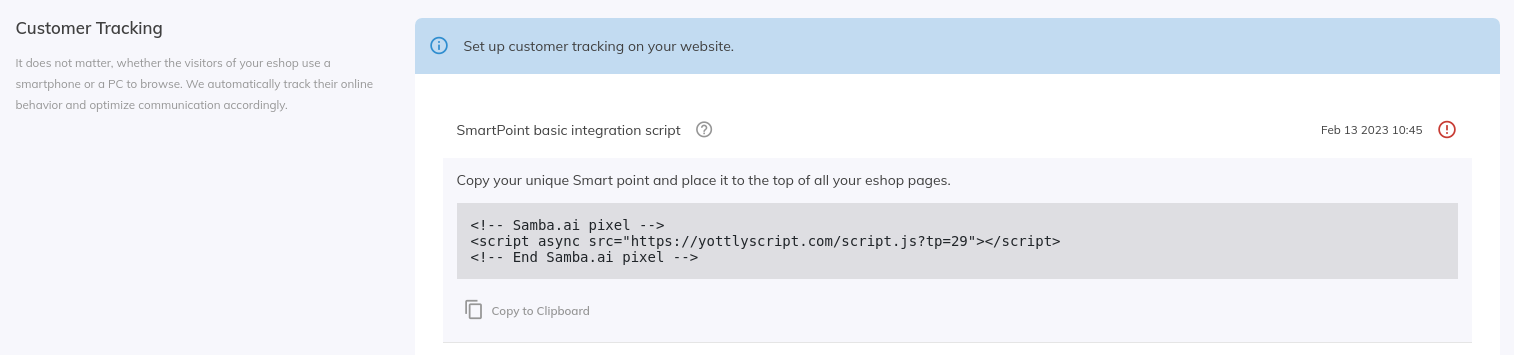
- Additional tracking scripts in TXT


Embedding code into the site
The above-mentioned script must be inserted into the administration of your eshop in Upgates.
In the left sidebar, open the Addons section and go to the Custom Conversion Codes.
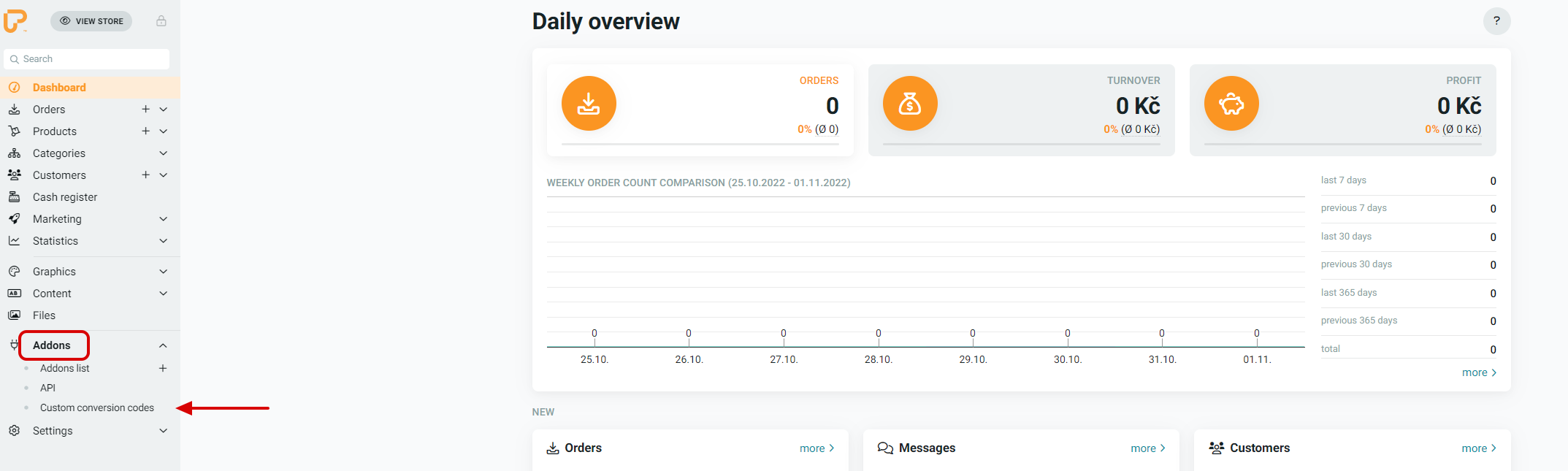
Here, paste the entire script into the Code placed before the tag </body> in the </> Codes placed on all pages section and save the settings.
This post is also available in: