
This post is also available in:


If you are looking for a detailed description of specific merge tag categories, you should see these articles:
- Static Products Merge Tags
- Personalized Products Merge Tags
- Trigger: Abandoned Cart Merge Tags
- Trigger: Shopping Intention Merge Tags
- Trigger: Repeated Orders Merge Tags
What is Merge tag
A merge tag is a dynamic placeholder that is automatically replaced with a specific value when a newsletter is sent, such as a customer’s name, email, or other information from your database. Merge tags can also be used to display product information such as price, discount, name, product URL, product image, and more. This allows you to easily personalize communication without having to manually enter static data for every user or newsletter. Merge tags can be in two different forms – Smart merge tag form and Plain text form.
Smart merge tag
Smart merge tags are inserted via Merge tags modal in the Drag&Drop editor. They are automatically displayed in the interactive smart merge tag form. Also their syntax is not manually editable. You can only replace the whole merge tag with another one.

If you have previously used the Merge tag modal to insert merge tags into your template, they got automatically transformed into Smart merge tag form.
Plain text merge tag
These merge tags are displayed as plain text and their syntax can be manually edited.

Example
Imagine you want to send an email to your customers and address every customer with their name:
Hi {{customer_custom_param_Salutation}},
thank you for your purchase!
If the customer’s custom parameter Salutation is available and its value is “John”, the final message will look like this:
Hi John,
thank you for your purchase!
Merge tag options
While editing text, you’ll see a “Merge tags” option in the menu.
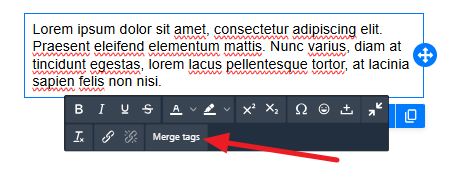
When clicked, a modal window is displayed. There is also an option called “Insert as,” which appears when you hover your mouse over the desired merge tag in the window. There are five insertion options available.
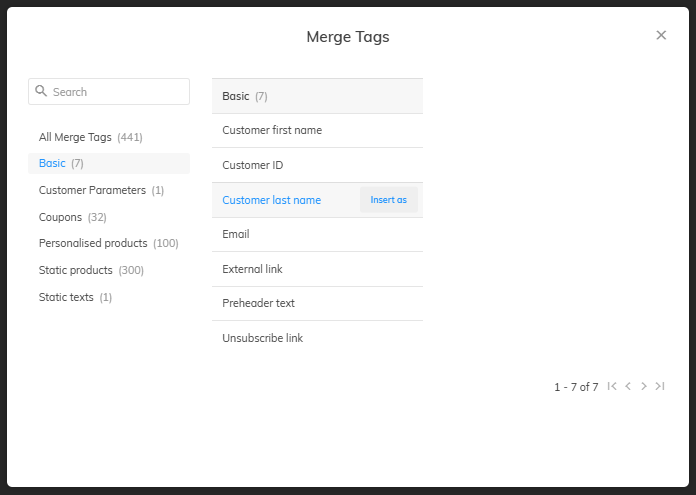
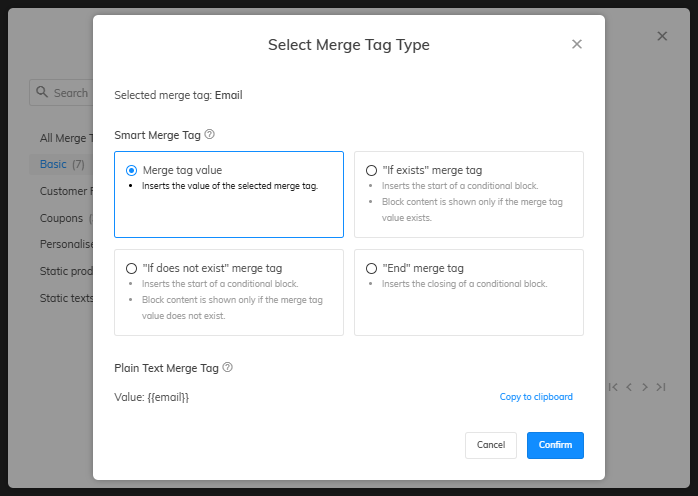
- Merge tag value – Inserts the value of the selected merge tag.
- “If exists” merge tag – Inserts the start of a conditional block. Block content is shown only if the merge tag value exists.
- “If does not exist” merge tag – Insert the start of a conditional block. Block content is shown only if the merge tag value does not exist.
- “End” merge tag – Inserts the closing of a conditional block.
- Copy plain text to clipboard – copies the merge tag as plain text. You can then manually adjust the syntax.
Example
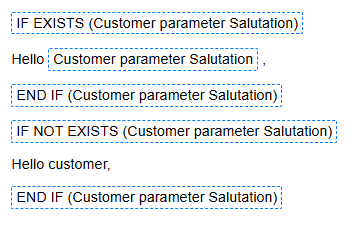
So if you need to create a conditional block that appears only if a customer salutation exists, use the “If exists” merge tag at the beginning of the condition and the “End” merge tag at the end, using the customer’s “Salutation” parameter. It will look like this:
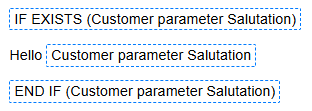
A complete example covering both cases—when “Salutation” exists and when it does not—will look like this:
Benefits of using Smart merge tags
When using the option to insert merge tags in the Drag&Drop editor instead of writing them manually, working with templates becomes more efficient. This also eliminates the possibility of mistakes. It only takes one click to insert an entire merge tag.
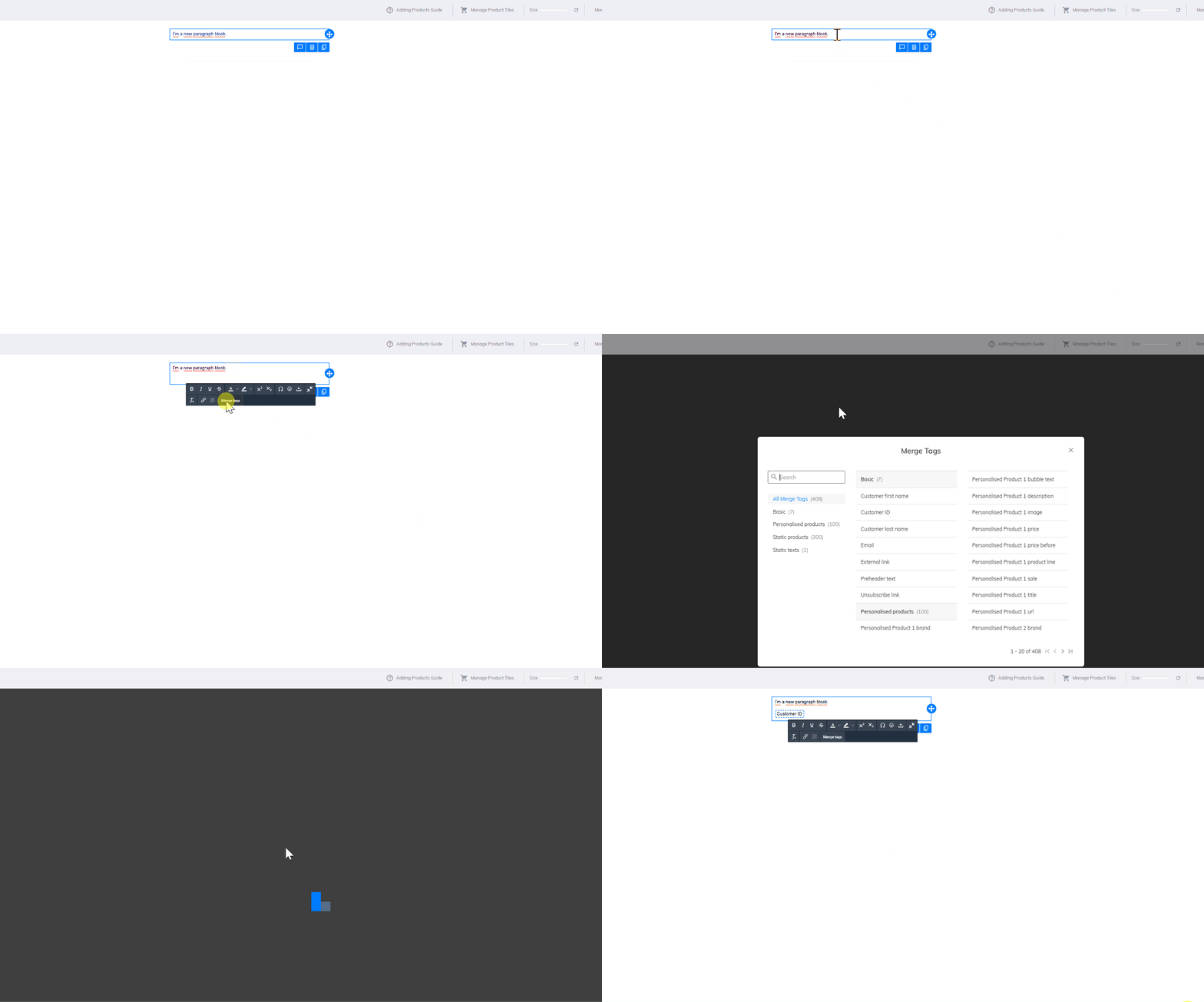
Merge tags are visually highlighted, making them easy to distinguish from regular text.
There is also the option to preview merge tag values within the editor.

This post is also available in: